Showing posts with label French immersion. Show all posts

Thursday, 24 January 2013

Popplet and Bears

We are at the end of our unit studying bears. Over the last few days the students have been working in pairs to demonstrate their knowledge on a specific bear. We used one of our favourite apps, Popplet, to create mind maps that contained images, pictures, and words. Below are some examples of the Popplets my grade ones created.
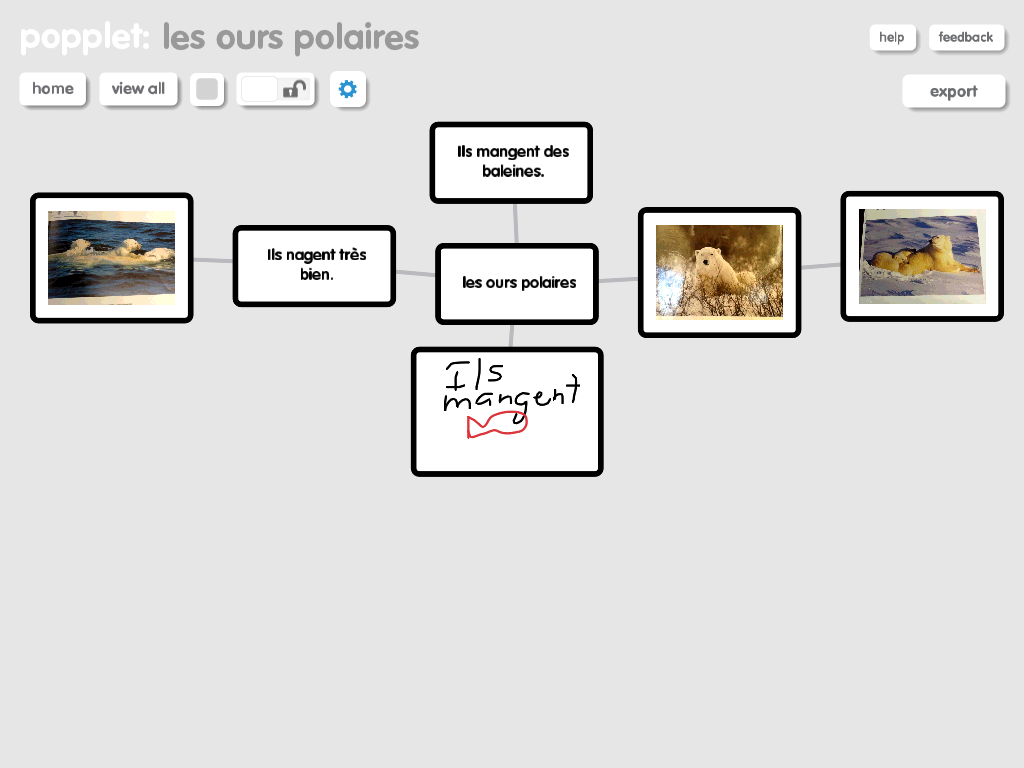


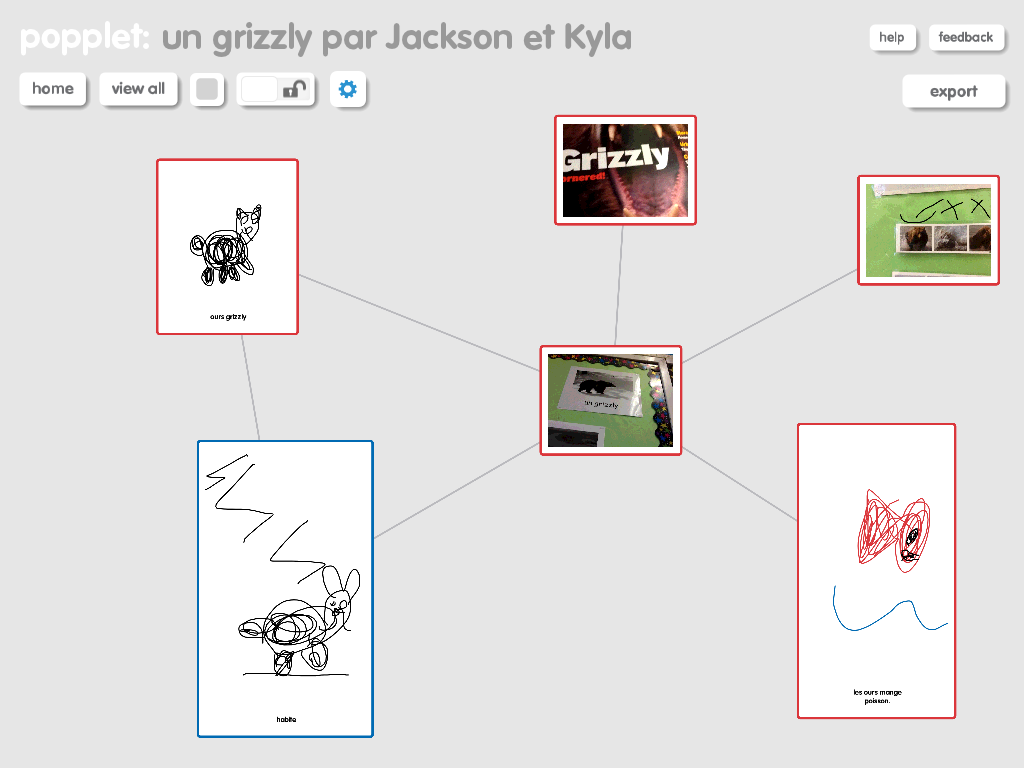


For the most part I am happy with what we did; however, there are a few things I would do differently. I began by leaving the activity very open-ended. I encouraged students to pick a bear and then to use all the different resources in the classroom to add all the things they knew/we had learned about that particular bear. As my students are in grade one and French immersion, they were having trouble writing the words to go with the photos and pictures they had drawn or taken. This made it difficult to interpret the Popplets.

After the initial phase was complete we all sat down together and discussed the Popplets and decided things we liked and things that we needed to revise a bit. The students decided that they needed to add some words to explain briefly the pictures and they also decided on a list of criteria that should be included in their Popplet like; what they eat, where they live, habits during different seasons, information about hibernation, their appearance, etc... After these revisions the Popplets provided better evidence of learning. As you view the Popplets please keep in mind that they do still require the voice of the student creator to explain their connections and some of their images. This oral language component is so essential for students to develop-especially in a French immersion classroom :)

Friday, 1 June 2012

Popplet and Story Mapping


Today we decided to make a plan for the stories we are writing by using Popplet. Popplet is an app that allows the user to create webs that include words, photos from the library, photos that you take, or simple drawings that you can make right in the app. Students worked together in groups to make a plan for their stories that included the characters, setting, problem and solution. Once students had these basic ideas I encouraged them to expand their ideas to include descriptions for their characters and more details about the setting.


It is so interesting to walk around and watch students negotiate the French language trying to think of the right vocabulary word and then subsequently try to figure out how to spell it. I love to hear them all share their different spelling strategies (word wall, personal dictionary, a book in the classroom, sounding-it-out...).

Here are some Popplets:


Next week students are going to use these webs to write their stories using the Book Creator app.

Thursday, 24 May 2012

Number stories and Show Me


I used Twitter last night and my PLN (personal learning network) and asked for some ideas of how to use the iPads to create number stories. I love using the iPads as a tool for learning. I only have 6 for my class of 24 so I therefore need to get creative and always think cooperatively. My PLN rewarded me (thanks ‏@LirenmanLearns and @nikileech) with some great ideas including ;
  1. using the video or photo function to walk around the classroom and find items that represent different shapes
  2. creating number stories with manipulatives and then videotaping them
  3. use the Draw and Tell app to animate addition and subtraction problems using the stickers 
  4. use Screen Chomp to draw and tell number stories
I decided that the students were going to create number stories using the Show Me app. This app allows students to take photos, use existing photos, use photos online, or to draw. Students can then record their voices sharing the number story and solving the problem. Show Me also has an online learning community where other Show Me videos can be shared and viewed.


Once students completed their Show Mes we viewed them using our projector. We gave the presentations some feedback for next time. It was a great learning experience for all with a lot of success and some failures to learn from for next time :)
We had a few challenges. When students made a mistake with their recording we could not find a way to start again. We had to erase and start from scratch? There must be a better way....? I would love any feedback you can give me. There was a lot of learning going on as students needed to write and record at the same time. They also needed to figure out how to work together to create one Show Me. Below is a sample that I videotaped (sorry for the quality). I could not figure out how to embed the video directly from the app?? Can you?


Thursday, 17 May 2012

Videolicious and Plant Discovery

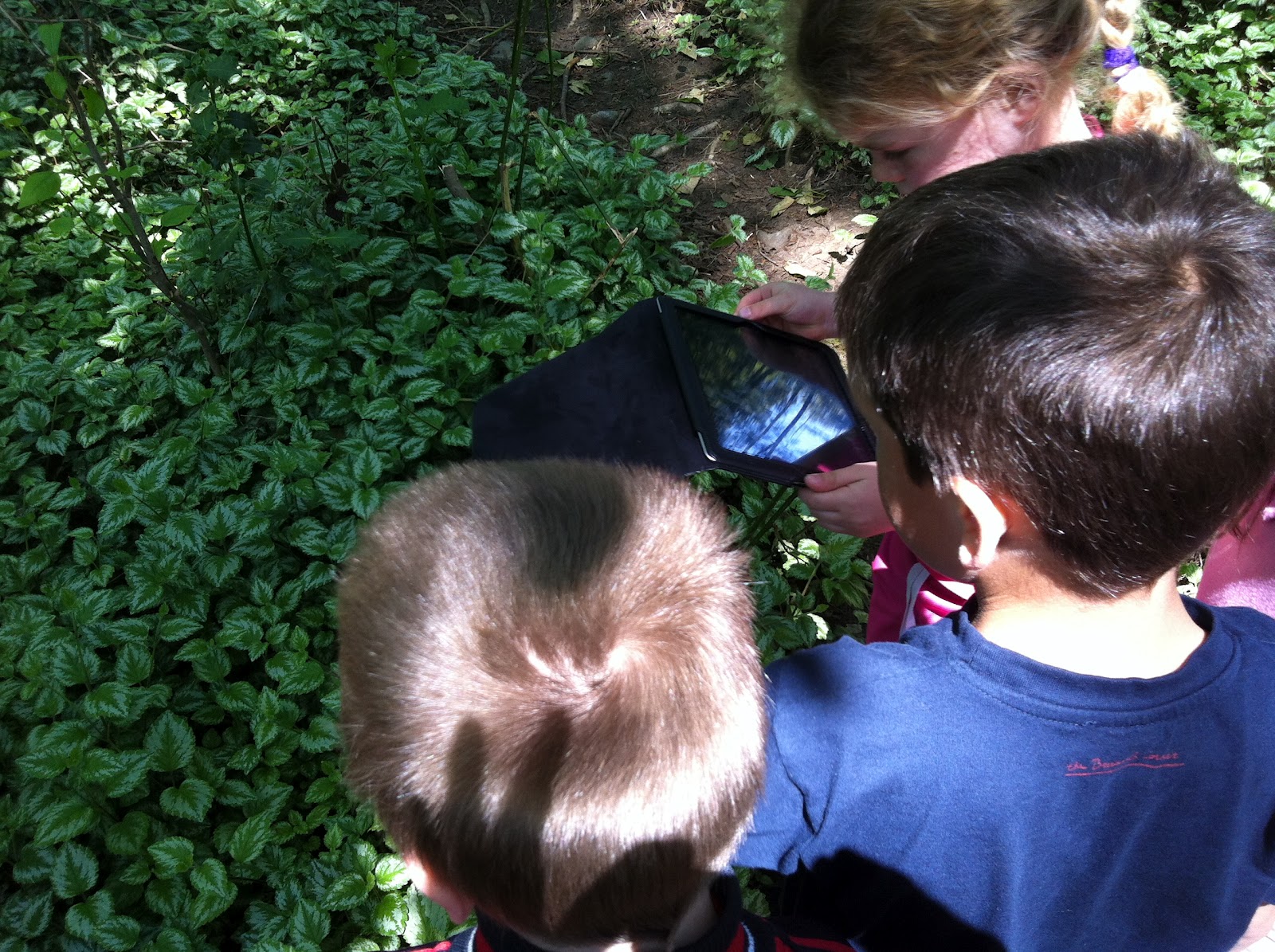
We took our iPads OUTDOORS!! Yay! We have this great forest outside our school so we decided to explore it with our iPads. Students took photos of plants, leaves, stems, and roots. They were so excited and it was so nice to be outside.


Students worked together in groups using the Videolicious app. Students recorded their voices and added music to create fun and interesting videos about plants.

Students took it upon themselves to write down the dialogue before recording. It was really interesting to see all the different skills students required to create videos collaboratively. It was amazing to watch how students decided to both speak and record videos at the same time. It was amazing to see the problem solving.

My only real issue is the background noise. It is really hard to record audio in a classroom because you end up with a lot of voices :(


Plants, Skitch, and Book Creator


We have been studying plants for the past few weeks. Today I decided that the students would demonstrate their leaning by using Skitch and Book Creator. Students worked in groups of four and were asked to do one of four things. They were assigned; the needs of a plant, the parts of a plant, or the life cycle of a bean. Students used Skitch to either draw or take photos. Students labelled the parts of their drawings and then saved them. Once saved, students opened Book Creator and began to create a book with their drawings and labels. Students also took turns recording their voices and sharing their information.

Skitch is great because it is compatible with Evernote so the work can be saved a student's notebook (eportfolio). This is helpful when iPads are shared with other classes. You don't need to worry if another student deletes or changes the work. I like Book Creator because not only can you open the book in epub form you can also email the book as a pdf.

Here are some screenshot examples of picture drawn or photos taken and labelled using Skitch.


My students used these in Book Creator to write and record their own book. Below are some screenshots of the pages of one book. You can see the audio symbol where the students recorded their voices. Unfortunately, you can't hear the recordings because these are just screenshots.


Now I need to learn how to insert a pdf into this blog??? Ideass? Suggestions?? Still new to this blogging thing :)


Wednesday, 4 April 2012

Toontastic is fantastic!!


We decided to add a little more fun to our creative writing by creating some comics. I have been sharing a variety of comics. We now have a comic collection in the classroom that consists of books, newspapers, and some online versions. We have talked about what types of things you find in comics like speech and thought bubbles. Each of my students decided on a setting and some characters, a problem and a solution. I printed off a few different strip designs and they were off. Talk about students engaged and on-task!


The second step involved animating the comics using Toontastic. Students used their comic to create an animated 'movie' version. Toontastic directs students to create a scene and characters, then think of a problem and solution. It takes students step-by-step through this process.


While the program is very easy, students still seem to need a lot of support. I have no specific concerns or things to make other teachers aware of. Like most technology, it really just takes time to become familiar with the program.

There is a great online teacher/parent guide that comes with this app (available online). The cartoon can be uploaded to a ToonTube account and viewed online.

Complaint = I can't save it and export it anywhere :( I want to save it to students' Evernote accounts but there is no option to do that...? I am going to do some online research on this one. Does anyone have any suggestions???? It looks like cartoons can only be uploaded to an online viewing platform.

Friday, 23 March 2012

Labeling and Doodle Buddy

Writing comes in so many forms. Today, my students practiced labeling. I began by showing them a few suggestions on how to use the iPad by projecting its image via my classroom projector and VGA adapter. I showed students how to use the camera app to take a self-shot. They learned how to turn the camera around and where the actual lens is located.

Once they had a photo, I showed them how to open it up in Doodle Buddy to use it as the background for labeling. Students then identified the parts of their body in French. Once complete, I took a screen shot and saved it then emailed the photo to their Evernote account (e-portofolio) by writing the child's name in the subject line (i.e. @John). All the finished photos are now saved in the student's Evernote personal notebook.

Monday, 6 February 2012

Faces iMake and descriptive writing

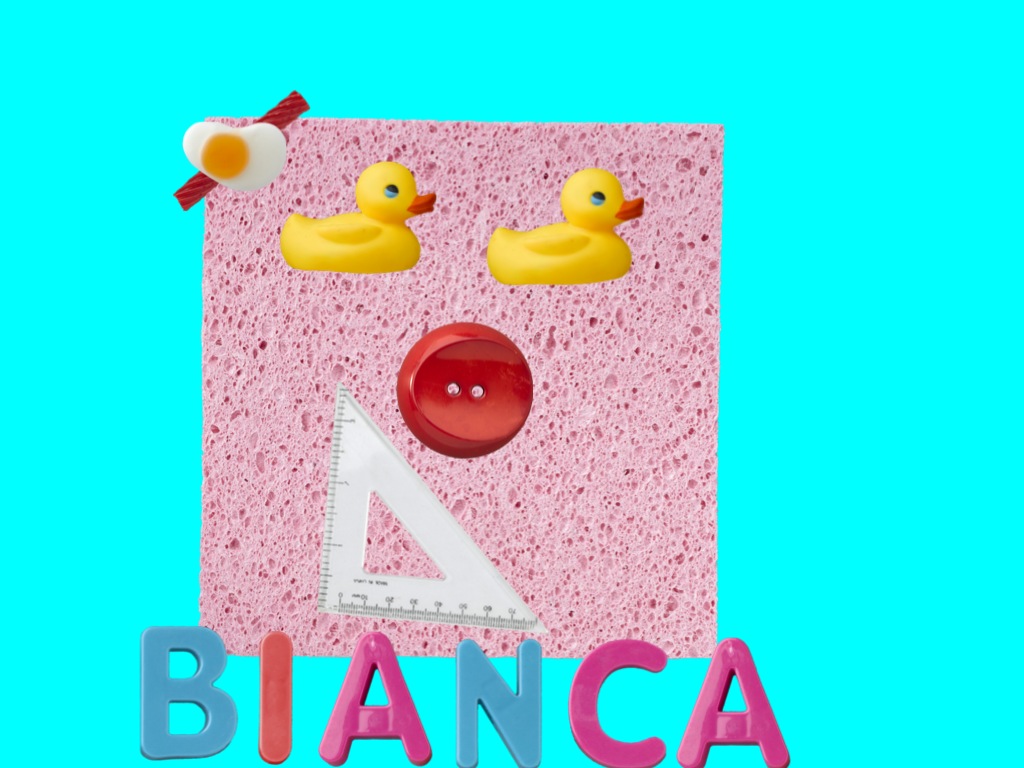
I love this app! It is very funny and really gets the right brain working. Students worked alone to create a funny face. Then, they saved their pictures to the photos on the ipad. I downloaded the photos to my computer and then printed them out.  We are learning to write descriptive sentences in French using sentence frames (i.e. Voici __________. Il a___________. Il est __________.)

I printed their 'face' and they used it to write. The results were very impressive and lot's of fun to share. I love a lesson that involves laughter and imagination, and a lot of student engagement :)


What do you think? Have you used this app in your classroom?

Here are a few finished sentences and the whole class display. I also created a class book for students to read a share.