Friday, 7 December 2012

Skitch and Descriptive sentences

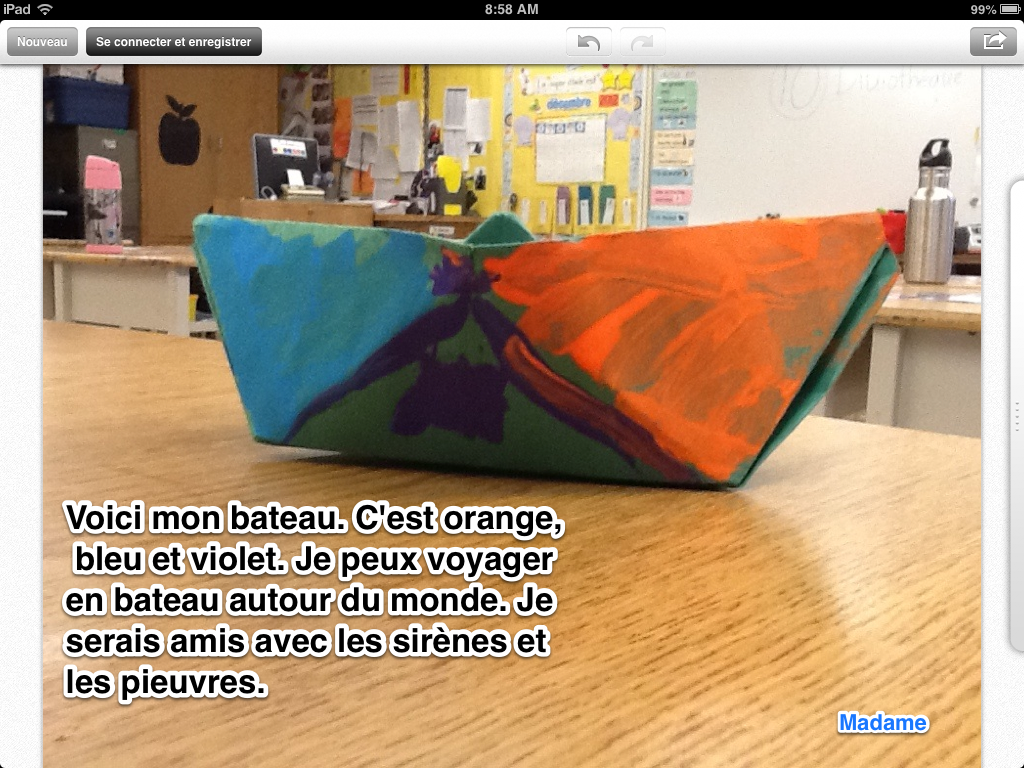
Yesterday we made paper boats with our student teacher. The students had to follow some complex oral directions in French. Then, students got to decorate their boats. Today we wrote descriptive and imaginative sentences using the Skitch app with our big buddies.


Skitch

Thursday, 6 December 2012

Journal entry and Doodle Buddy

Today I decided that rather than do our journals with a paper and pencil, we would create a journal entry using Doodle Buddy. Students worked in groups of two (because I love the collaboration) to draw a picture using the Doodle Buddy app. As I walked around the classroom, the conversations were music to my ears. I listened as students negotiated different ideas and tried to figure out (problem solve) the different functions of the app.


At the end of the project, students had to take a 'screen shot' of their picture and sentences. Then they had to email it to their individual evernote-notebook (eportfolio). These tasks require a lot of different knowledge/skills and I am impressed that my grade ones are able to do all of these things on their own, but they CAN!! (Just as a side note-this project was about the content of their writing and connecting the picture to some vocabulary. Students are still at the emergent writing stage so they are writing words phonetically and therefore there are errors)


Thursday, 8 November 2012

Working with ten frames and Doodle Buddy

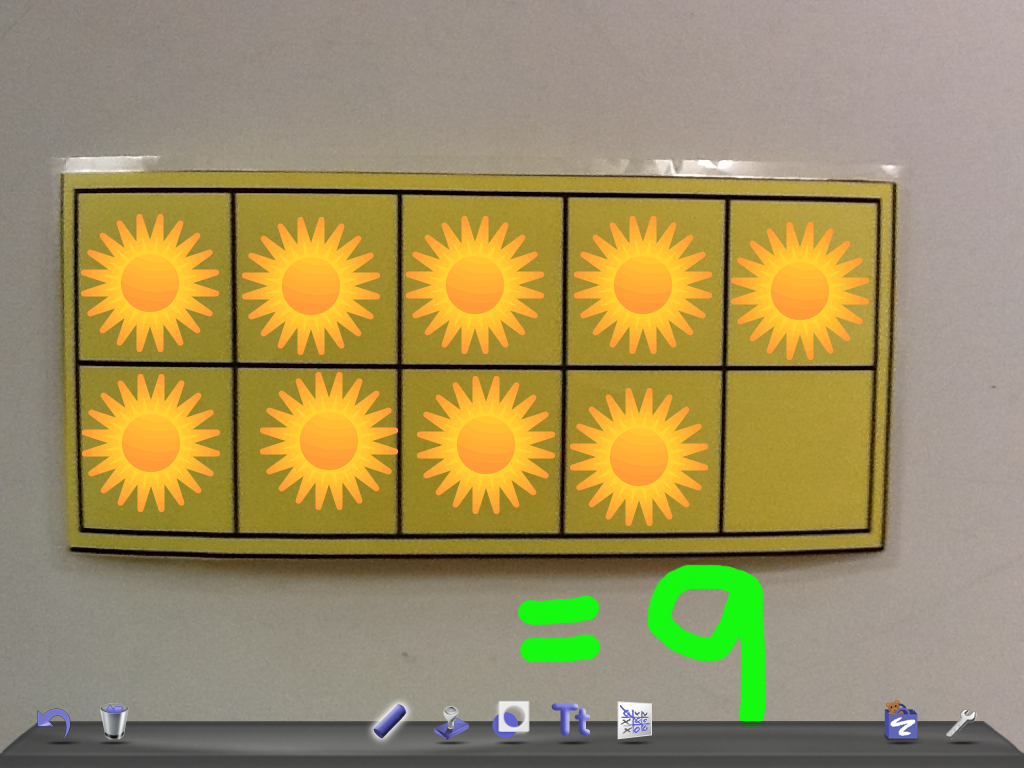
Today we used our iPads to work with ten frames. We are learning how to use this graphic organizer to help us count and have a quick idea of 'how many' we can see.

Students took a photo of the ten frame graphic organizer and then opened it in Doodle Buddy. Then they worked in groups of two to represent different numbers from 1-12. They used the stamps to quickly show the number to their partner.


It was simply another way to work with the iPad. Students have math bags in their desks that include a ten frame and counters. However, I wanted to show the students another way that the iPad can be used as a tool for learning. The iPad won't replace manipulatives, but it is another fun way to be 'hands on' with the concept (and they love to laugh at the sounds the stamps make-any lesson with laughter is one that they will remember!).


Friday, 2 November 2012

Free Play and Sharing our Creations

Today was the first day with my new class using the 'new' school iPads. I wanted to start with something simple that would combine our love of playing and sharing together.

Students 'created' something using the manipulatives in the classroom and the working together with a partner, they took a picture. Students loved to create things and then share what they had created.

Using Air Server, a projector and laptop, students were able to mirror their creations to show their classmates. We were able to mirror multiples devices at once to compare and contrast them.


I decided to keep things simple today and end there. Next class we are going to take our photos and choose our favourite to use for a writing task.


Tuesday, 30 October 2012

How to deploy school iPads


Welcome back to a new school year. I know the year is well underway, but it has taken me until now to be able to add a new post to this blog.

After a successful first year of using the iPads that the District purchased for me, I made a plea to our PAC (Parent Advisory Council) to purchase school iPads. I asked for 24 iPads, a synching/charging cart, a projector, speakers, and laptop. Our PAC is very supportive and they purchased everything I asked for!!

It has taken some time for me to determine the best way to deploy a school set of iPads that will be used by 500 students! I did a lot of research and then found myself my own 'Apple Guy' who helped me navigate the set-up.


As I found this a challenge, I have decided someone out there might as well. You might find this information helpful for your own school iPad deployment. Below I have outlined my steps.

1. Go to the iTunes store on your laptop

  • Choose an app to download to start the process
  • You will be prompted to create your apple ID
  • To create an ID you need an email
  • Create a gmail account (schoolnameiapd@gmail.com)
  • Continue the process to create an apple ID
  • Select apps to download
  • Add gift cards to the account, no credit card is necessary!


2. Plug the USB cord from the charging/synching cart into the computer you are downloading the apps to
  • Synching begins
  •  If you want you can arrange all the apps into folders on the iPad and create a ‘Master’ iPad
  • Then restore all the other iPads from the back-up
  • Name the iPads by double clicking on the name. Start with 01, 02 etc
  •  Check all the boxes to automatically synch apps to the iPad and photos and music
Settings on each iPad
  •  Turn off photo stream off
  •  Set-up the icloud account
  • Turn on Find my iPad
  • Go to restrictions and don't allow Location changes (so that if the iPad is stollen it can be located)
  • Turn off deleting apps (if deleted they are still on the iTunes account, more of a management issue)
  • Turn contacts off (contacts can be turned on and then you can add a contact list for each iPad that includes different things like Evernote accounts and their specific email addresses-division name or teacher name-that way primary students could easily email completed projects to their own Notebook on Evernote to create an eportfolio) (see older post about Evernote for more information)
  • Set-up an email on each iPad by creating gmail accounts for every 10 iPads
  •  Turn Safari off (you can turn it on if you want specific websites bookmarked for each ipad)


Note: Anything in the library of the computer you are using to download the apps will end up on the iPads


 Setting-up email on iPads
      • sign-in to the email account on each iPad
  • create a different gmail account for every 10 iPads (google    allows for up to 10 devices to use the same address at once)


Setting-up Dropbox on the iPads
  • create a school DropBox account
  • create folders for each division that teachers can use and access from anywhere
  • sign-in to the school DropBox account on every iPad

Evernote
  • teachers can create Evernote accounts that include Notebooks for each student
  • teacher can add their Evernote email address to the iPads
  • students can email completed work directly to their Notebook by writing @and their name in the Subject line of the email
  • don't leave the iPads signed-in to Evernote as each teacher will need to control the use of their own Evernote account
Mirroring

We are using the Air Server app downloaded to our school laptops to mirror iPads for student discussion, sharing work, and teaching purposes. It cost $15 for the use of Air Server on 5 devices. You need to create a PayPal account to download the program. A school projector needs to be hooked up to the laptop and then turn the program on to start to mirror the iPad.

One last note: At this point in time Canada has just create a bulk purchase program. My school District has not yet started this program. Until then, we are downloading apps and sharing them on multiple devices. Soon however, we are going to have to adjust our protocols.....


Friday, 1 June 2012

Popplet and Story Mapping


Today we decided to make a plan for the stories we are writing by using Popplet. Popplet is an app that allows the user to create webs that include words, photos from the library, photos that you take, or simple drawings that you can make right in the app. Students worked together in groups to make a plan for their stories that included the characters, setting, problem and solution. Once students had these basic ideas I encouraged them to expand their ideas to include descriptions for their characters and more details about the setting.


It is so interesting to walk around and watch students negotiate the French language trying to think of the right vocabulary word and then subsequently try to figure out how to spell it. I love to hear them all share their different spelling strategies (word wall, personal dictionary, a book in the classroom, sounding-it-out...).

Here are some Popplets:


Next week students are going to use these webs to write their stories using the Book Creator app.

Thursday, 24 May 2012

Number stories and Show Me


I used Twitter last night and my PLN (personal learning network) and asked for some ideas of how to use the iPads to create number stories. I love using the iPads as a tool for learning. I only have 6 for my class of 24 so I therefore need to get creative and always think cooperatively. My PLN rewarded me (thanks ‏@LirenmanLearns and @nikileech) with some great ideas including ;
  1. using the video or photo function to walk around the classroom and find items that represent different shapes
  2. creating number stories with manipulatives and then videotaping them
  3. use the Draw and Tell app to animate addition and subtraction problems using the stickers 
  4. use Screen Chomp to draw and tell number stories
I decided that the students were going to create number stories using the Show Me app. This app allows students to take photos, use existing photos, use photos online, or to draw. Students can then record their voices sharing the number story and solving the problem. Show Me also has an online learning community where other Show Me videos can be shared and viewed.


Once students completed their Show Mes we viewed them using our projector. We gave the presentations some feedback for next time. It was a great learning experience for all with a lot of success and some failures to learn from for next time :)
We had a few challenges. When students made a mistake with their recording we could not find a way to start again. We had to erase and start from scratch? There must be a better way....? I would love any feedback you can give me. There was a lot of learning going on as students needed to write and record at the same time. They also needed to figure out how to work together to create one Show Me. Below is a sample that I videotaped (sorry for the quality). I could not figure out how to embed the video directly from the app?? Can you?